Fill PDF Forms 5x Faster: A Guide to Reusable Profiles
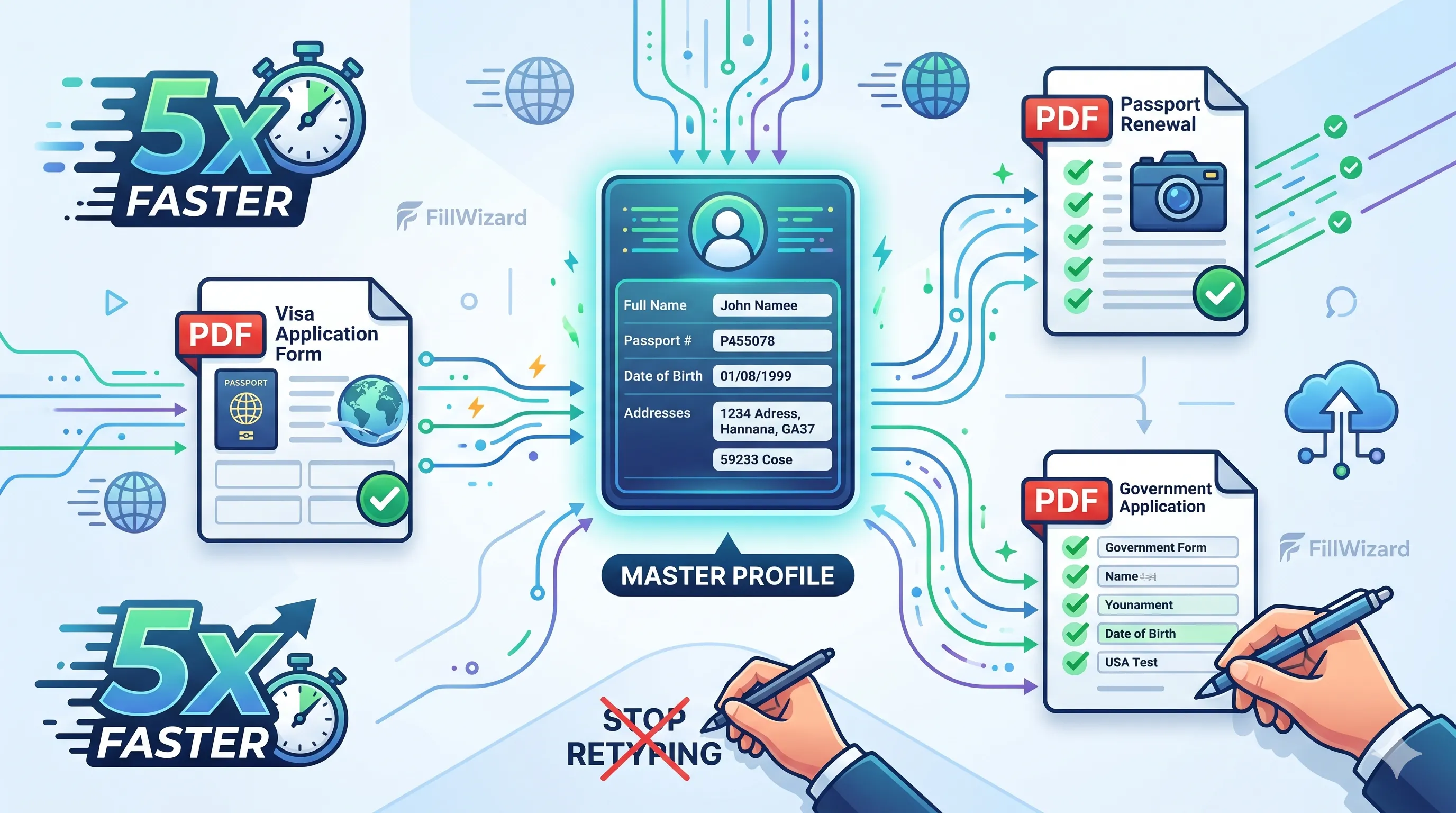
It’s a task everyone dreads: another PDF form lands on your desk, and you find yourself typing the same information for the hundredth time. Name, address, date of birth, passport number, company registration... the list goes on. This repetitive data entry isn't just boring; it's a significant drain on productivity and a major source of costly errors.
But what if you could eliminate 90% of that retyping? What if you could fill out complex forms in seconds, not hours, with greater accuracy?
By shifting your mindset from "filling a form" to "managing reusable data," you can create a streamlined workflow that saves time, reduces mistakes, and frees you up for more important work. Here are five practical tips to get you started.
1. Create One Master Profile Per Person or Entity
The most significant time-sink in form filling is typing the same core information repeatedly. The solution is to create a single, centralized profile (or "master record") for each person, client, or company you work with.
This profile becomes your single source of truth. It should contain all the static, reusable information, such as:
- Personal Details: Full name, date of birth, nationality.
- Contact Information: Address, phone number, email.
- Identification: Passport number, national ID, tax ID, company registration number.
- Professional Details: Job title, employer name, business address.
Whenever you get a new form, you simply apply the profile to it. When a detail changes—like a new address or an updated passport—you only have to update it in one place. Every form you fill from that moment on will use the new information.
2. Standardize Your Data, Especially Names
Forms often ask for the same information in slightly different ways (e.g., "First Name," "Given Name"). Worse, multilingual forms may require names in different scripts (e.g., Latin vs. Arabic). This is where standardization becomes your best friend.
In your master profile, decide on the definitive version for each piece of data:
- Name Spelling: Establish one primary spelling and store common variations. For example, store both
Mohamedandمحمدin the same profile. - Date Formats: Decide whether you'll use
MM/DD/YYYYorDD/MM/YYYYand stick to it where possible. - Address Formatting: Use a consistent format for street addresses, postal codes, and countries.
By storing these variants in your central profile, you eliminate the guesswork and inconsistency that leads to retyping and potential rejection of the form.
3. Separate "Reusable" Data from "Review-Only" Fields
Automation is powerful, but not every field on every form should be auto-filled without a second glance. A smart workflow separates data into two categories:
- Stable, Reusable Data: This is the information in your master profile that rarely changes (name, passport number, date of birth). You can pre-fill this with high confidence.
- Dynamic, Review-Only Data: These are fields specific to the form at hand, such as the date of submission, specific case numbers, or answers to situational questions.
The goal is to pre-fill all the stable data instantly, leaving you with only a handful of dynamic fields to complete manually. This transforms a 30-minute task into a 2-minute review process.
4. How FillWizard Puts These Tips into Action
Manually managing profiles in a spreadsheet can work, but a dedicated tool like FillWizard is designed to perfect this workflow. It directly implements these principles to maximize your efficiency.
- Centralized Profiles: FillWizard allows you to create detailed, reusable profiles for every person or entity. Update once, and the changes sync everywhere.
- Smart Field Mapping: The platform intelligently maps the fields in your profile to the corresponding fields on any PDF form, regardless of the language or layout.
- One-Click Filling: Once a profile is created, you can fill an entire multi-page form with a single click.
- Collaborative Workspace: Teams can share profiles, ensuring everyone is working with the same accurate, up-to-date information, which eliminates data silos and inconsistencies.
By using a tool built for this purpose, you move from theory to practical, everyday time savings.
5. Treat Export as a Final Quality Check
Speed is useless without accuracy. Before you export or submit the final PDF, implement a quick but essential quality assurance (QA) step. Your review should focus only on the most critical, high-stakes fields:
- Key Dates: Submission dates, travel dates, deadlines.
- Names and Identifiers: Double-check that the primary names and ID numbers are perfect.
- Case-Specific Information: Verify any data you entered manually for this specific submission.
A 30-second final pass can prevent hours of headaches caused by resubmissions and delays. After the form is approved, always save a final copy with the relevant case file. This creates a clear audit trail and makes it even easier to reference or correct information for the next form.
Checklist
- Create one master profile per person or entity with all their core information.
- Standardize spellings and formats for names, addresses, and dates.
- Identify which fields are static (reusable) and which are dynamic (require review).
- Implement a final review checklist to ensure accuracy before submission.
- Archive the final, filled PDF for auditing and future reference.
Related articles
 Tool Comparisons
Adobe Fill & Sign Alternative When Autofill Suggests the Wrong Name
Adobe Fill & Sign remembers more than you want. Wrong name. Previous customer's signature. Private medical details on the next PDF. This guide covers when to clear the cache, when to keep Acrobat, and when a reusable profile is the safer Adobe Fill & Sign alternative.
8 min readRead more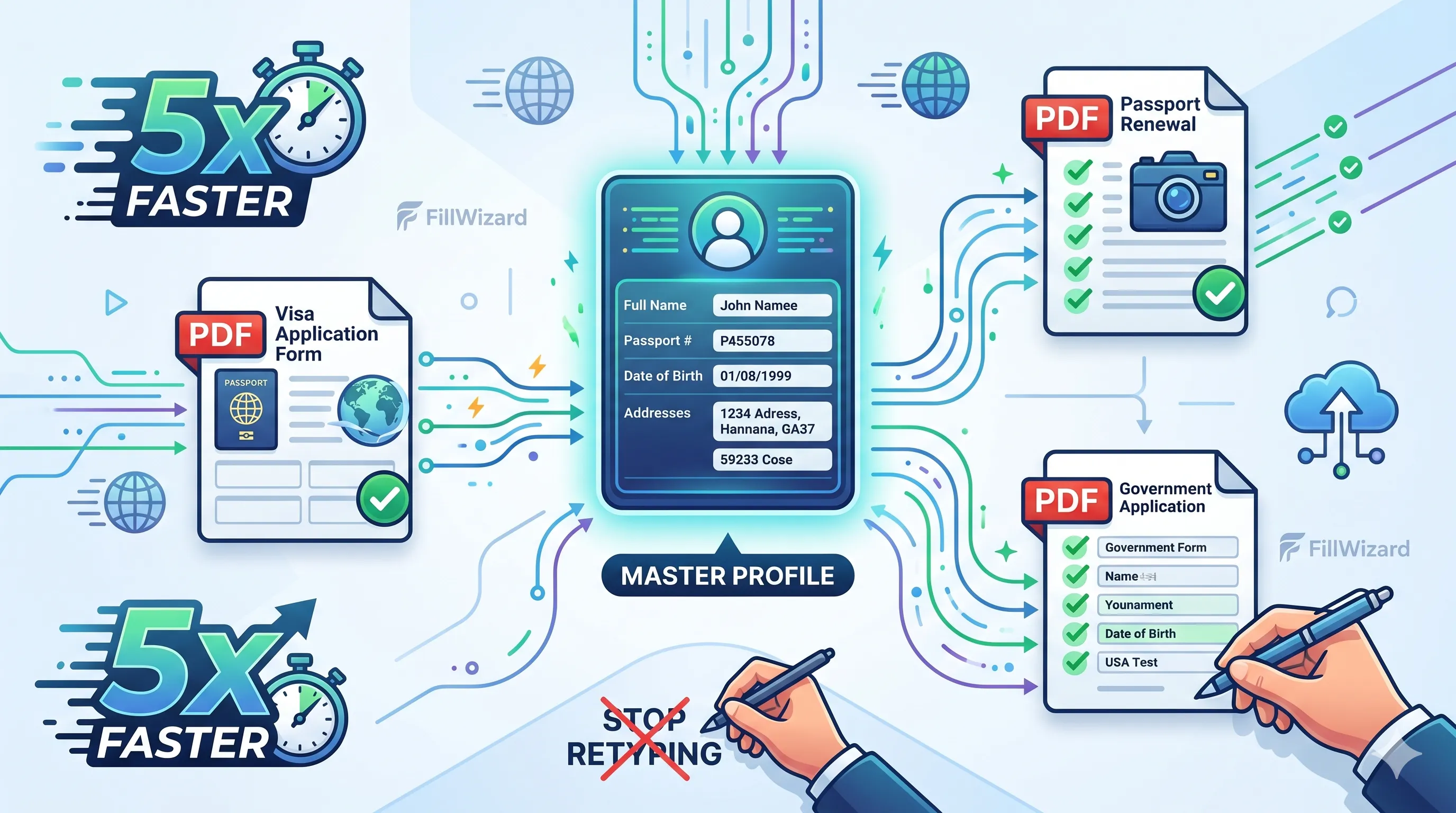 Productivity
How to Batch Fill PDF Forms from a Profile (Without Mail-Merge Pain)
Batch fill and prefill should mean enter once, fill many PDFs. Mail merge for fillable forms is the old workaround. A profile is the cleaner version of the same idea.
9 min readRead more Visa Workflows
DS-160 Family Application: Why the Family Button Still Makes You Retype Everything
A DS-160 family application is still one form per person. The family button on CEAC does almost nothing for shared fields. Profiles fix the retyping. CEAC still gets the final submit.
9 min readRead more